Custom symbol libraries
TinyCAD for the web supports custom symbols stored in symbol libraries.
Libraries use the .tclib extension and are compatible with desktop TinyCAD.
Using existing libraries (local files)
- Open another TinyCAD web tab/window.
- Use Open to open a
.tcliblibrary file. - Drag and drop symbols from that window into your drawing.
Using existing libraries (Google Drive)
If you already have libraries created with desktop TinyCAD, grant TinyCAD web access to each one:
- In Google Drive, right-click the
.tclibfile. - Choose Open with -> TinyCAD.
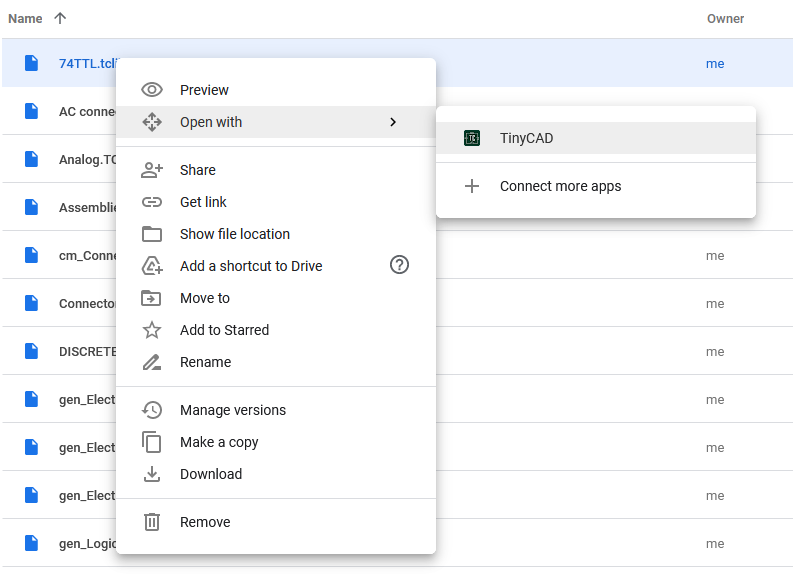
Repeat this for every library you want available.
This action opens the library for editing. If you only need access, you can close that tab/window afterward.
Note: Google Drive may sometimes behave case-sensitively. If TinyCAD
does not appear in Open with, ensure .tclib is lowercase.
Back in your drawing session:
- Open My Libraries.
- Click Refresh next to My Libraries.
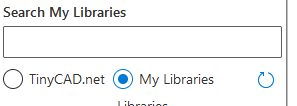
After refresh, libraries are listed:
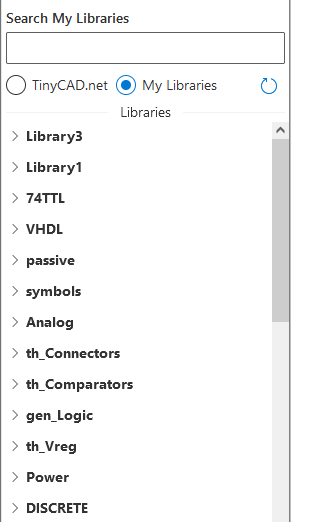
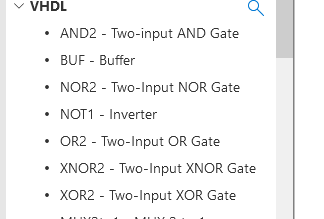
You can browse libraries by expanding them, search for symbols, or open symbol preview with the magnifying glass button:
Creating a new library
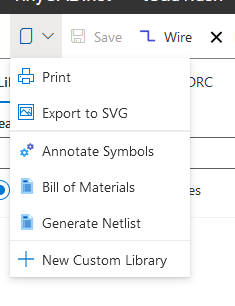
Use the menu item New Custom Library:
Editing a library
Edit an existing library by opening it in TinyCAD web via:
- Open button in TinyCAD web, or
- Google Drive Open with -> TinyCAD
Editing a symbol
Click a symbol in the library side panel to load it into the editor, then edit as needed.
Adding a symbol
Click the + button at the end of the symbol list in the side panel.
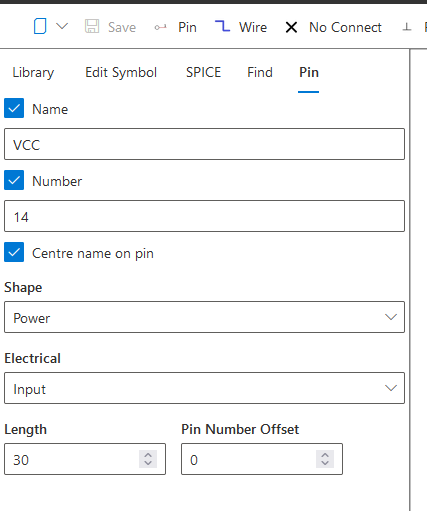
When creating symbols, use proper Pin objects for electrical connection points. Correct pin usage is essential for expected behavior in schematics.
Pin size, shape, and type are configured in the side panel:
Deleting a symbol
Use the symbol menu button and choose Delete.
Deletion can be undone using toolbar Undo.
Duplicating a symbol
Use the symbol menu button and choose Duplicate.
Renaming a symbol
Rename by editing symbol properties and changing the Name field.
- Back to Advanced
- Back to v4 contents