Custom Symbol Libraries
This page covers library-level tasks: adding libraries to TinyCAD, opening them for editing, creating new library files, and carrying out simple symbol management actions such as add, duplicate, rename, and delete.
For browsing libraries and placing symbols into a drawing, see Using Symbol Libraries. For drawing or changing the symbol itself, including pins and symbol properties, see Editing a Symbol.
Library files use the .tclib extension and can be stored on your computer or,
with Google integration, on Google Drive. They are cross-compatible between the
desktop version of TinyCAD and the browser version.
You can also load libraries that were written by the legacy v3 version of TinyCAD.
Browser
Open an existing library from a local file
- Open another TinyCAD web tab/window.
- Use Open to open a
.tcliblibrary file. - Keep that tab open while you work with the library.
Once the library is open, you can browse or drag symbols from that window into your drawing, or edit the symbol definitions in the library.
Make a Google Drive library available
If you already have libraries created with desktop TinyCAD, grant TinyCAD web access to each one:
- In Google Drive, right-click the
.tclibfile. - Choose Open with -> TinyCAD.
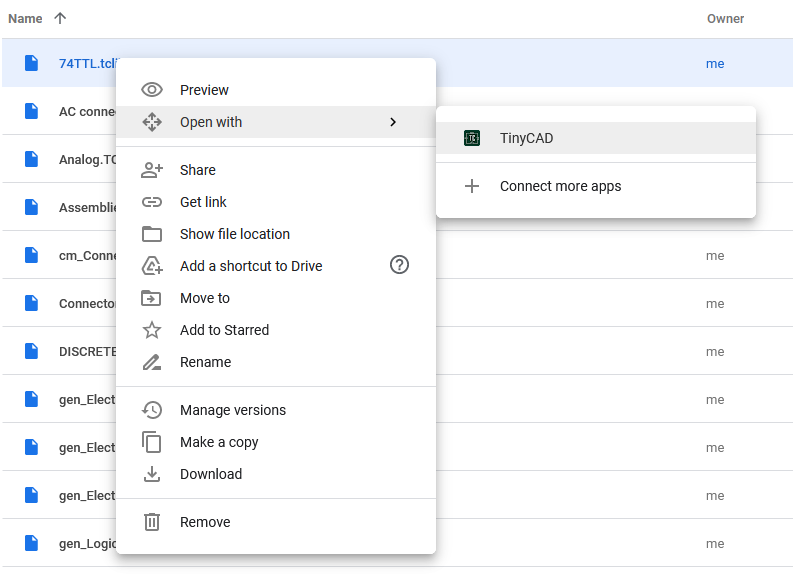
Repeat this for every library you want available.
This action opens the library for editing. If you only need access, you can close that tab/window afterward.
Note: Google Drive may sometimes behave case-sensitively. If TinyCAD
does not appear in Open with, ensure .tclib is lowercase.
Back in your drawing session:
- Open My Libraries.
- Click Refresh next to My Libraries.
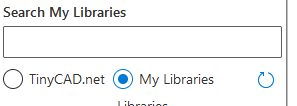
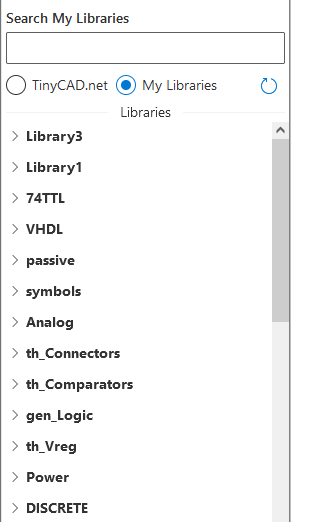
After refresh, libraries are listed:
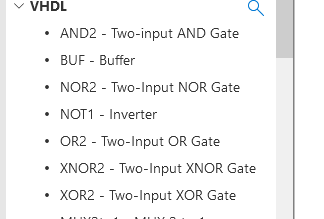
You can browse libraries by expanding them:
Creating a new library
Use the menu item New Custom Library:
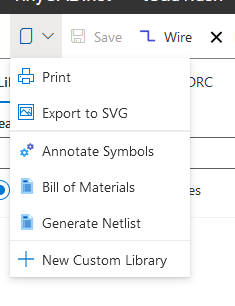
Edit a library
Edit an existing library by opening it in TinyCAD web via Edit button on the Library.
Desktop App
Add or remove libraries
Before any symbols can be used from a library, the library must be added to the list of libraries under My Libraries.
To add a library to this list, click Add. A file selection dialogue will
appear. Select a library file with the .tclib extension.
To remove a library from the list, click the edit icon on the library to open the library dialog, then click Remove. This does not delete the file; it only removes it from the list.
Edit a library
Use the library edit dialogue to select the library and click Edit. A new window opens with a thumbnail view of the library.
Use the library editing window to:
- See thumbnails of the symbols in the library
- Add new symbols to the library
- Delete, duplicate, and rename symbols in the library
- Edit a symbol’s graphics, pins, names, and attributes
- Move symbols from one library to another
Select a symbol by clicking on it. Once selected, you can edit it in the main window, or use the controls to duplicate or delete it.
When you have finished editing the library, save it using the normal Save or Save As commands.
For the symbol-level editing workflow, see Editing a Symbol.
Creating a new symbol library
Use the New button on the library panel. A new window will open with an empty library.
- Back to Symbols & Libraries
- Back to v4 contents