Your first drawing
At its simplest level, a TinyCAD drawing is a collection of symbols linked using wires.
If TinyCAD is not running yet, start with the quick start.
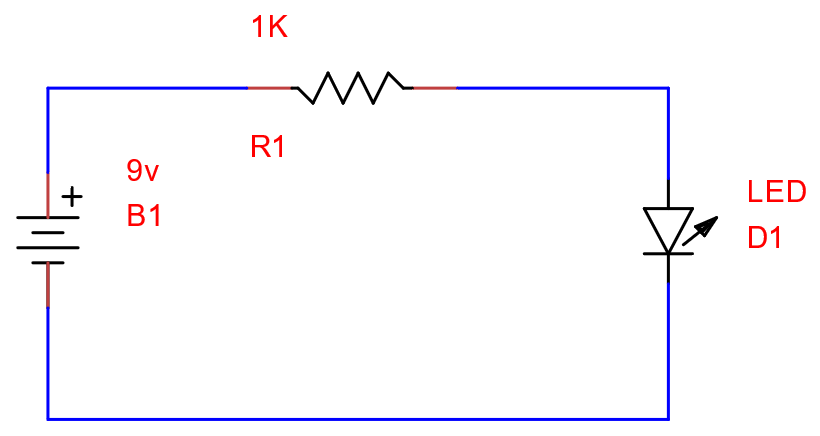
Example circuit
Here is a simple circuit to draw:
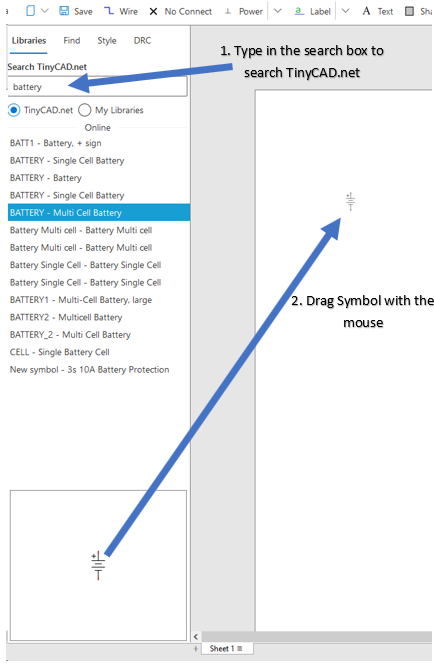
Symbol libraries
- Type
batteryin the search box. - Select Multi Cell Battery.
- Drag the symbol from the symbol panel onto the drawing.
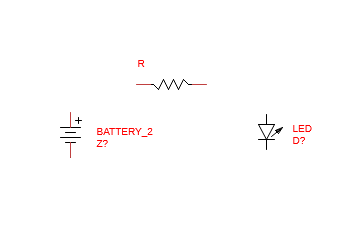
Now place a resistor and an LED.
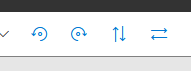
Use the toolbar rotate/flip controls to orient symbols:
If you make a mistake, use Undo/Redo:

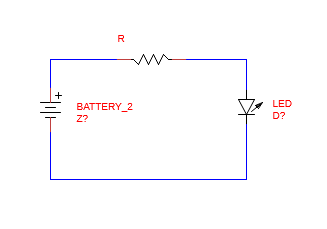
Your drawing should look similar to:
Wiring up a circuit
- Select the Wire tool.
- Click a battery terminal to start a wire.
- Move to the resistor terminal and click again to place the wire.
Wires snap to valid symbol connection points. A red circle indicates a snap location.
Tip: press W on the keyboard to re-enter wire mode quickly.
After wiring, it should look similar to:
Annotating the drawing
Symbols need component values and references. In TinyCAD these are typically the symbol Name and Ref fields.
- Click the battery.
- Open the Symbol panel in the side panel menu.
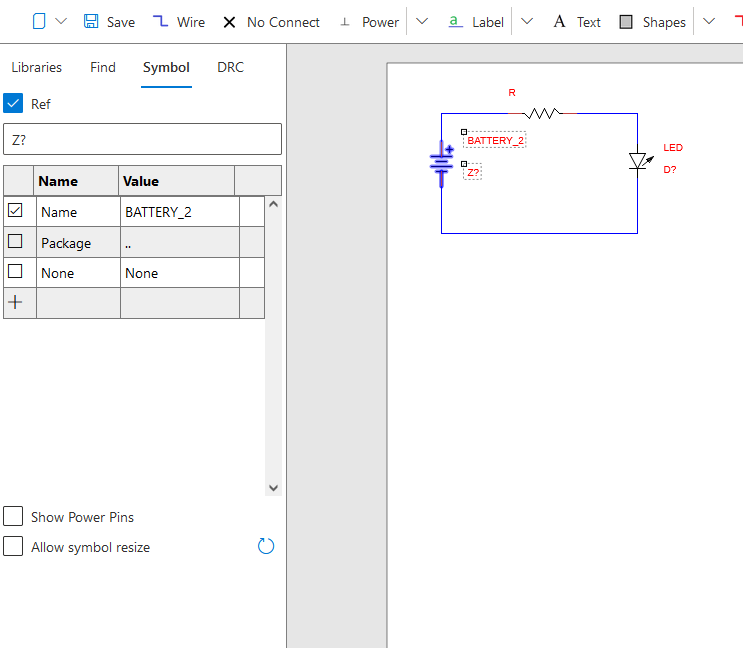
- Change
BATTERY_2to9V. - Change reference
Z?toB1.
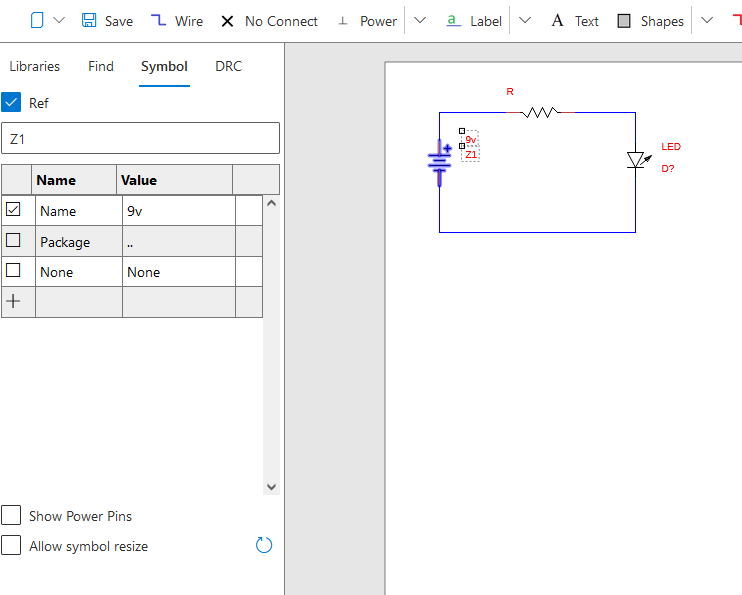
Repeat for the other parts:
- Resistor: Name
1K, RefR1 - LED: Name
Red Led, RefD1
If a name/reference is hidden, use the checkbox controls to show or hide text on the drawing.
Searching a drawing
Use Find from the side panel to search for text in the drawing:
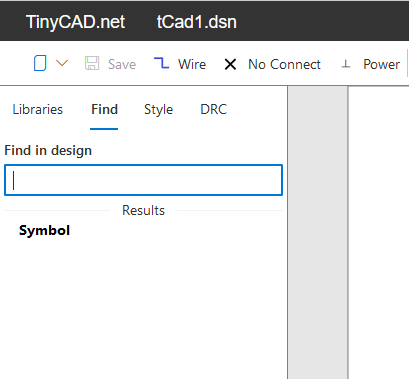
Enter text to get matching items. Selecting a result highlights that item in the drawing. This is useful for finding references quickly.
Exporting and printing
Use the toolbar menu Print option:
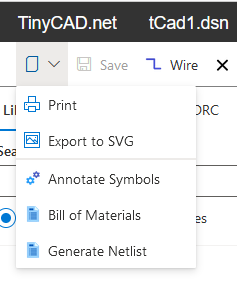
Most browsers open a PDF in a new tab. You can print directly or save the PDF.
You can also export SVG. SVG is useful for embedding in documents/web pages. Notes:
- SVG export contains the current sheet only (single page format)
- Free SVG-to-DXF converters are available online
Loading and saving
Your first drawing is complete. To rename it:
- Click the drawing name at the top (for example
tCad1.dsn). - Rename it to
First Drawing.dsn. - Press Enter.
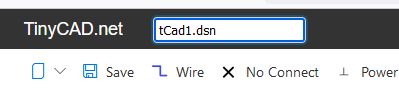
Save to Google Drive using the Save icon.
To load it again from Google Drive:
- Open https://drive.google.com/drive/.
- Find the drawing.
- Right-click and choose Open with -> TinyCAD.
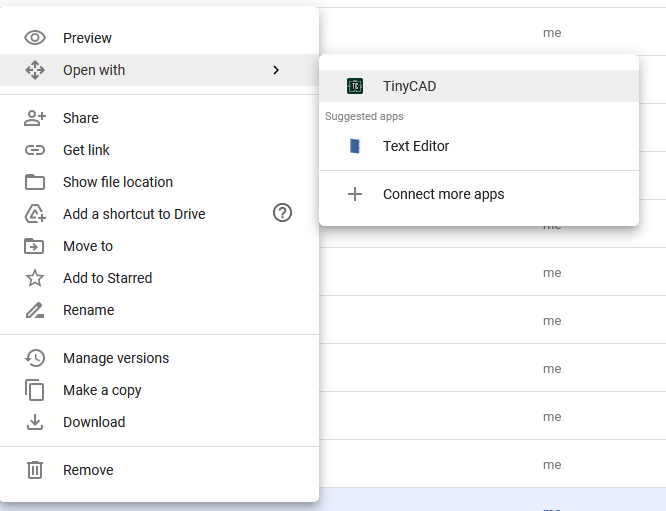
You can also rename and delete TinyCAD designs in Google Drive.
Desktop integration
TinyCAD web file format is compatible with desktop TinyCAD. Download a drawing from Google Drive and open it in the desktop app.
Likewise, upload existing drawings to Google Drive and use Open with -> TinyCAD.
Note: Google Drive may sometimes treat extensions case-sensitively. If
TinyCAD is missing in Open with, ensure .dsn is lowercase.
Design Rules Check (DRC)
DRC reports potential design mistakes, such as unconnected pins.
Aim for zero design errors to increase confidence in schematic correctness.
If a pin is intentionally unconnected, place a No Connect marker on that pin to clear the error.
Setup drawing
Design Details box
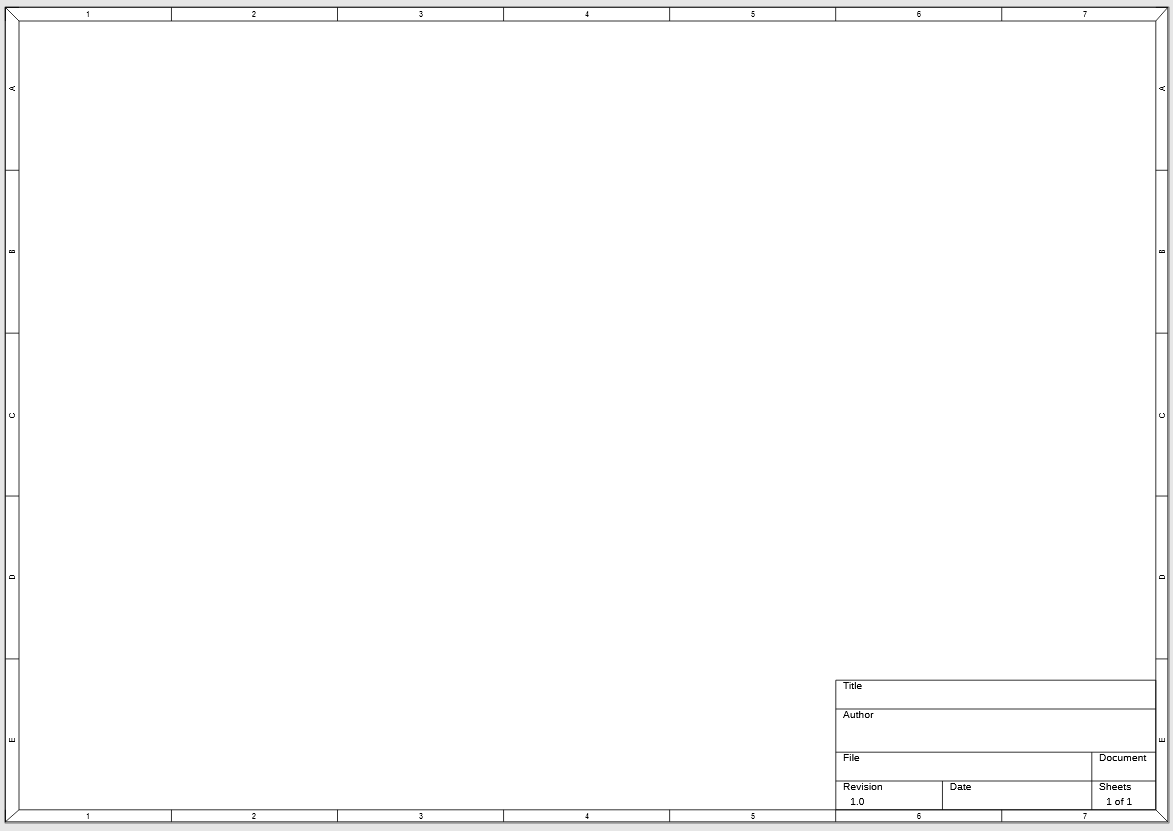
The Design Details box can appear at the bottom-left of the drawing:
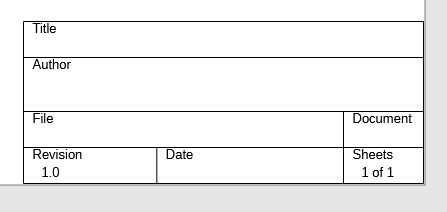
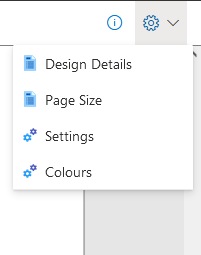
Edit it from the settings menu using Design Details:
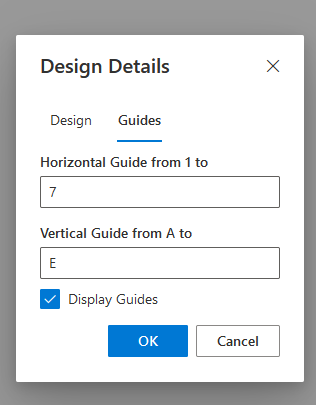
You can toggle the box on/off and configure design guides (letters/numbers around the page edge):
Design guides appear as follows:
Page size
Configure drawing size with the Page Size option in settings.
Grid spacing
Configure grid spacing and related behavior in Settings.
Grid spacing matters: most components are drawn on Small Grid, and keeping that grid makes pin alignment and wiring easier.
Advanced drawing techniques
Labels
Labels connect wires without drawing a physical wire between them. Labels with the same name are considered connected.
Labels can also connect across sheets for multi-page designs.
Label shape does not affect netlisting or DRC connectivity.
No-connects
Use no-connect markers to indicate that a pin is intentionally left unconnected.
Further reading
For custom symbols and libraries, continue with Custom symbol libraries.
- Back to User guide
- Back to v4 contents